
DPI (dots per inch) is the sensitivity of your mouse — how far the cursor travels for each inch you physically move the mouse. Manufacturers list a DPI number, but the real DPI can differ from the label, and Windows scaling can throw it off further. Here's how to test your mouse DPI accurately, for free, in your browser.
The quickest way is our Mouse DPI Test, which measures your actual DPI, and the DPI Calculator for converting between sensitivities. This guide explains exactly how to use them.
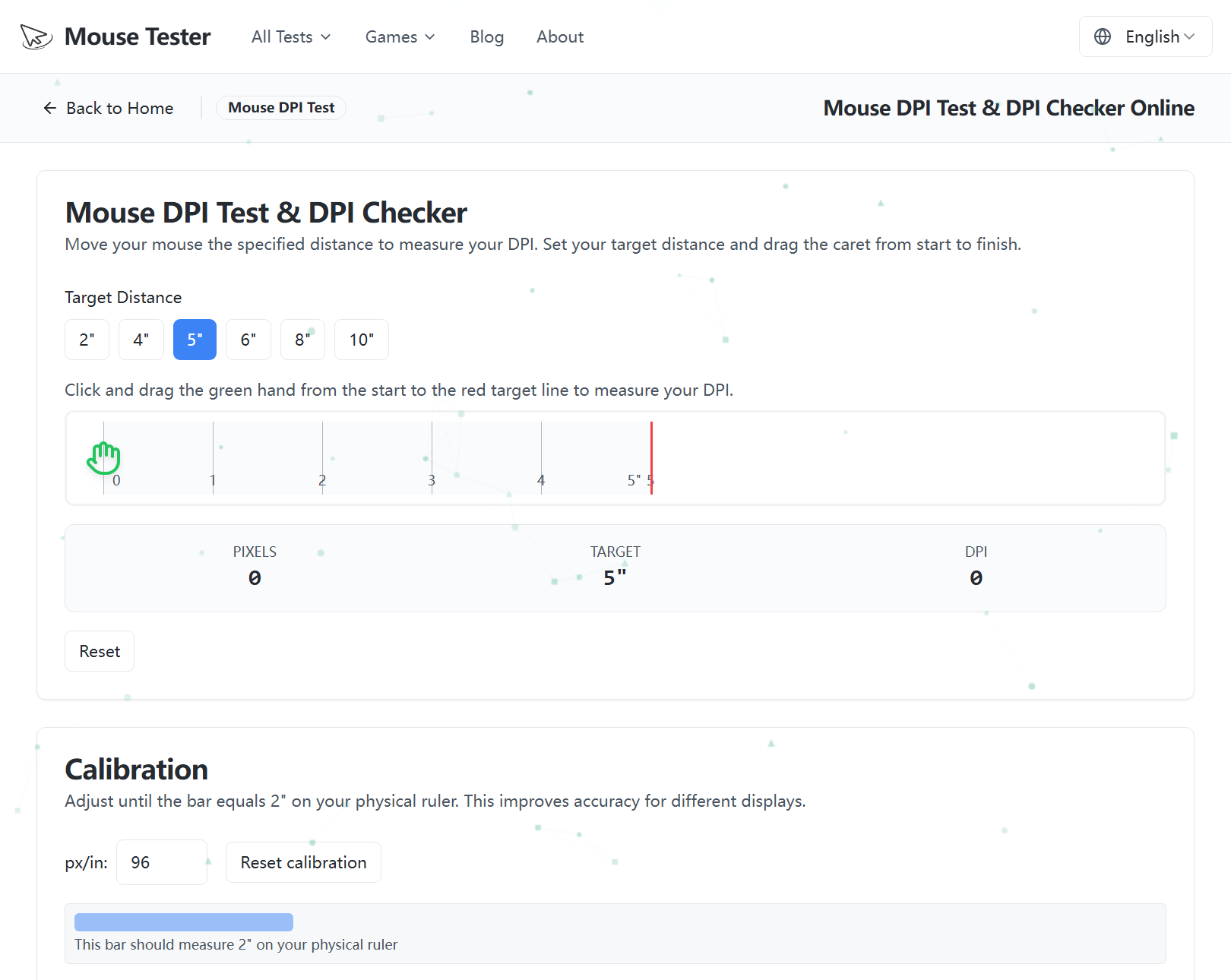 The Mouse DPI Test: pick a target distance, drag the caret across the ruler, and it calculates your measured DPI from the pixels moved.
What Is Mouse DPI?
DPI (sometimes called CPI, counts per inch) is how many dots of cursor movement the sensor registers per inch of physical motion:
- 400–800 DPI — Low. Precise; the standard for competitive FPS gaming.
- 1200–2400 DPI — Medium. Balanced for general desktop use.
- 3200 DPI and up — High. Fast movement for large or high-resolution monitors.
A higher DPI is not "better" — it's just faster. Most esports players use 400–800 DPI because lower sensitivity is easier to aim precisely.
How to Test Your Mouse DPI Online
You can measure real DPI without any software using our Mouse DPI Test. The method works by having you move the mouse a known physical distance and comparing it to the pixels the browser records.
Step-by-step
- Set your target DPI in your mouse software first (e.g. 800 DPI), so you can verify whether the mouse hits it.
- Open the Mouse DPI Test.
- Enter the physical distance you'll move the mouse (for example, 2 inches or 5 cm). Using a ruler on your mouse pad makes this accurate.
- Press and drag the mouse in a straight line across exactly that distance, then release.
- The tool divides the pixels moved by the distance to calculate your measured DPI.
- Repeat 2–3 times and average the results for the best accuracy.
For reliable numbers, turn off "Enhance pointer precision" (mouse acceleration) in Windows first — acceleration distorts the measurement. See our mouse calibration guide for how to disable it.
Why Measured DPI Might Not Match the Label
If your test result differs from the DPI you set, common reasons are:
- Mouse acceleration is on — it changes distance based on speed, breaking the 1-to-1 measurement.
- Windows display scaling (125%, 150%) multiplies effective cursor movement.
- Sensor tolerance — inexpensive sensors can be several percent off their rated DPI.
- Inaccurate physical measurement — even a small ruler error skews the result; move a longer distance to reduce it.
Check It in Your Mouse Software Too
Gaming-mouse apps show and set DPI directly:
- Logitech — G HUB → Sensitivity (DPI)
- Razer — Synapse → Performance → Sensitivity
- SteelSeries — GG → CPI
- Corsair — iCUE → DPI
Compare the software value with your measured result to confirm your mouse is tracking accurately.
Finding Your Ideal DPI
Once you know your real DPI, use the DPI Calculator to convert your sensitivity when switching mice or matching a pro's settings. A good starting point:
- Competitive FPS: 400–800 DPI with low in-game sensitivity.
- General use / large monitors: 1200–1600 DPI.
- Design and precision work: 800–1200 DPI with acceleration off.
Test the Rest of Your Mouse
DPI is only one part of mouse health. While you're at it, verify the rest:
- Mouse Button Test — confirm every button registers.
- Polling Rate Test — check how often your mouse reports position.
- Mouse Drift Test — make sure the cursor stays still when idle.
All run free in your browser with no downloads. Start with the Mouse DPI Test to measure your real sensitivity today.